Chapter 6: NeoPixel
Table of Contents
| Link | Purpose |
|---|---|
| 6. Chapter NeoPixel | Freenove’s official C version – Chapter 6 NeoPixel |
| Chapter 6 NeoPixel - Starter Kit for Raspberry Pi Pico | Freenove’s official video description |
| Alire crate | Alire crate containing the Ada code in this chapter |
| GNATdoc documentation for this chapter | Automatically generated HTML documentation for the Ada code in this chapter |
| pico_examples/ws2812_demo | Jeremy Grosser’s Ada sample code for WS2812 devices |
Driving NeoPixels with the RP2040 PIO #
When I first looked at controlling WS2812 (NeoPixel) LEDs on the Raspberry Pi Pico I was a little put off by the “just
use the library, bro” attitude everywhere. The Freenove tutorials and Adafruit guides are excellent for wiring and basic
usage, but they skip the actual protocol. Yet the PIO program in rp2040_hal is only four instructions long — it really
cannot be that complicated. So here is my short, practical explanation of how these clever little LEDs actually work.
How the WS2812 Protocol Works #
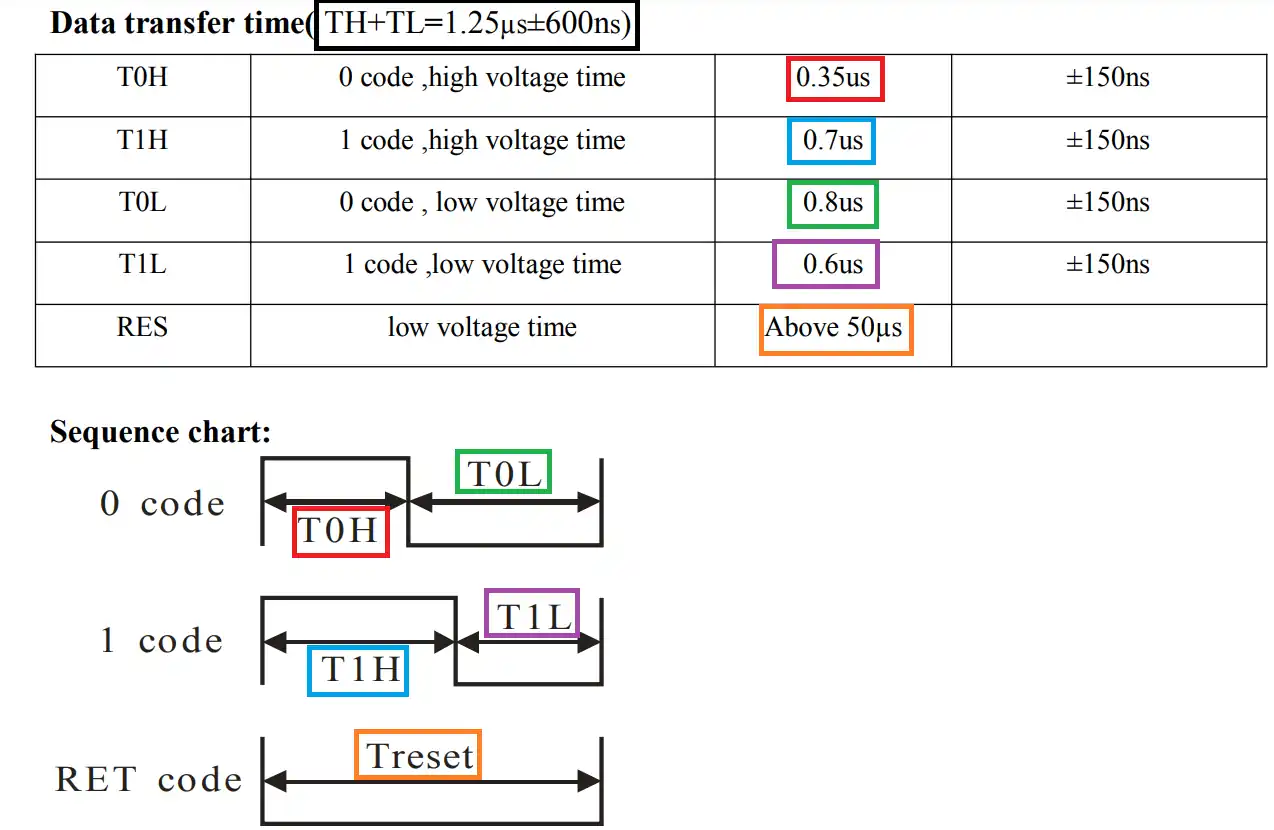
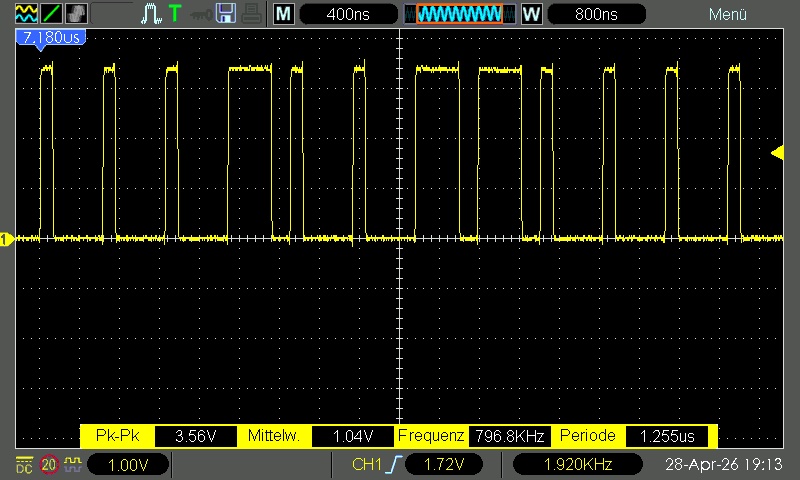
Each WS2812 contains a tiny controller that listens on a single data-in pin (DIN). The microcontroller sends a continuous stream of bits at roughly 800 kHz. A logical “1” is encoded as a long high pulse followed by a short low period; a logical “0” is a short high pulse followed by a longer low period. The exact timings have some tolerance (roughly ±150 ns), which is why the PIO makes life so easy.
For every LED you send 24 bits: 8 bits green, 8 bits red, 8 bits blue (GRB order, MSB first). The first LED in the chain consumes its 24 bits and then passes everything that follows on to the next LED via its data-out pin. This daisy-chaining continues automatically. After the last bit of the last LED you hold the line low for at least 50 µs (many people use 300 µs to be safe) — this reset/latch pulse makes all the LEDs update their colours at once.
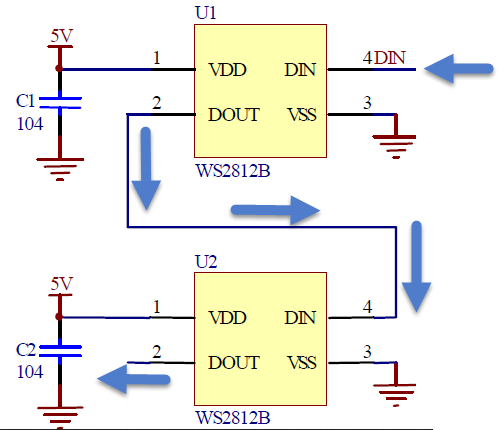
That is literally it. No address, no clock line, no acknowledge — just a precisely timed bit stream. Because the timing is so tight on the short “0” pulse, the RP2040’s Programmable I/O (PIO) is perfect: it runs independently of the main cores and can generate those nanosecond-accurate pulses with just a handful of assembly instructions.
In the next sections we will look at the actual PIO program, the Ada wrapper I wrote for it, and a couple of example animations. But first, wire up a strip exactly as the Freenove tutorial shows (5 V, ground, and one GPIO to DIN) and we will make those pixels dance with proper understanding rather than blind library calls.
Getting to Grips with PIO via a Square Wave Generator #
I started with Jeremy Grosser’s ws2812_demo sample to see how RP.PIO.WS2812 works, as it is more or less the only
documentation. It did not work. Changing Number_Of_LEDs to 8 made no difference. 😲
The sample code should work, shouldn’t it? Spoiler: it does not. There is a bug in the sample.
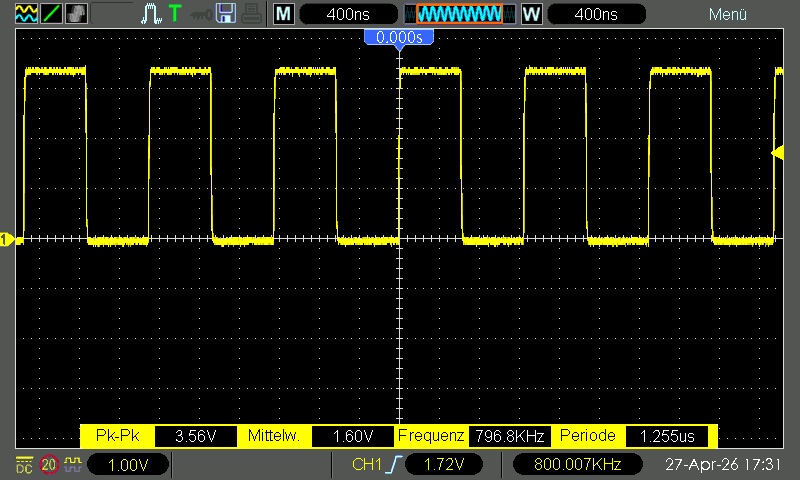
At this point I decided to write a very simple square wave using PIO directly.
What is PIO? #
PIO stands for Programmable Input/Output. It is a pair of dedicated hardware blocks on the RP2040 microcontroller that let you create your own high-speed, timing-critical I/O interfaces without burdening the main ARM CPU. Think of each PIO block as a tiny, independent processor that runs its own little assembly-style program and talks directly to the GPIO pins.
Each PIO block contains four state machines that can run in parallel. The instructions are very simple (set a pin high/low, wait a certain number of cycles, shift data in or out, etc.), but because they execute with deterministic timing at the system clock speed, you can generate incredibly precise signals – perfect for protocols like NeoPixel, WS2812b, VGA, or even custom interfaces you invent yourself.
We are not going to do a deep dive into every PIO instruction today – that would fill a whole chapter!
Lessons Learned #
Getting the square wave program to work was a stony path. I used the RP.PIO.WS2812 package as a starting point,
ignored everything DMA-related, and whipped up a quick two-instruction PIOASM program. That did not work either. But now
I had a reduced code base to ask for help and, thanks to the great Ada community, I quickly got an answer.
The four main issues that tripped me up were:
- Mixing up Set and Out — There is a
setand anoutoperation. I mixed them up in my hand-written code. - Hand-written PIO instructions — I have now switched to generating the Ada code automatically with the official
pioasmtool. Much safer! - Missing
Config.Set_Set_Pins— I had configured the Out pins and did not realise the Set pins need separate configuration. Without this the PIO program runs but the GPIO pin never toggles. - Wrong order of
PIO.Enable— I was enabling the state machine after initialising the PIO block and loading the program. The instructions were therefore either never written into the instruction memory or were deleted again.
I have added detailed comments to the source code explaining all these gotchas so that others can avoid the same traps. The working version (including the automatically generated PIO program) is now in the repository.
Note the project layout:
…/pi-ada-tutorial/chapter-06-neopixel/
├── alire.toml
├── pico_ada_c06_neopixel.gpr
├── src/
│   ├── squarewave-main.adb
│   ├── squarewave.ads
│   └── squarewave.pio
├── No_Pretty_Print.txt
├── obj/
└── bin/
pioasm can compile PIO assembler code into C, Python, hex, JSON, Ada, or Go. Excellent to see Ada on the list!
Fixing ws2812_demo.adb #
At first I thought this was an oversight in RP.PIO.WS2812.Initialize, but Jeremy pointed out it works as designed.
Fair enough — the real culprit was ws2812_demo.adb. Here is the corrected version with explanatory comments:
with HAL; use HAL;
with RP.PIO.WS2812;
with RP.Device;
with RP.Clock;
with RP.GPIO;
with RP.DMA;
with Pico;

--  Tested with a generic strip of WS2812B LEDs. https://www.amazon.com/gp/product/B01CDTEJBG/?tag=synack-20
procedure Ws2812_demo is
   Strip : RP.PIO.WS2812.Strip
     (Pin          => Pico.GP16'Access,
      PIO          => RP.Device.PIO_0'Access,
      SM           => 0,
      Number_Of_LEDs => 8);

   Hue        : UInt8          := 0;
   Saturation : constant UInt8 := 255;
   Value      : constant UInt8 := 32;
begin
   --  Since this version uses the light (non-tasking) runtime, timer
   --  initialisation and delays must be called explicitly.
   RP.Clock.Initialize (Pico.XOSC_Frequency);

   --  DMA and PIO must be enabled before starting the Strip, otherwise the
   --  PIO program will not be loaded into instruction memory.
   RP.DMA.Enable;
   Strip.PIO.Enable;

   --  Initialise the WS2812 strip (loads the PIO program) and enable DMA.
   Strip.Initialize;
   Strip.Enable_DMA (Chan => 0);
   Strip.Clear;
   Strip.Update (Blocking => True);

   RP.Device.Timer.Enable;

   loop
      for I in 1 .. Strip.Number_Of_LEDs loop
         Strip.Set_HSV (I, Hue + UInt8 (I mod 256), Saturation, Value);
      end loop;

      Strip.Update;
      RP.Device.Timer.Delay_Milliseconds (100);

      Hue := Hue + 1;
   end loop;
end Ws2812_demo;
Sketch_06_1_LED_Pixel #
After understanding how everything works, writing the sketch was a breeze. I increased the colours from five to eight just for fun.
procedure Sketch_06_1_LED_Pixel with
   No_Return
is
   use type Ada.Real_Time.Time_Span;
   use type Ada.Real_Time.Time;

   Number_Of_LEDs   : constant := 8;   --  ← change to your strip length
   Number_Of_Colors : constant := 8;   --  ← change to the number of different colours in your pattern

   --  RGB (most WS2812 strips)
   type RGB_Index is (R, G, B);
   type Color_Index is range 1 .. Number_Of_Colors;
   subtype LED_Index is Integer range 1 .. Number_Of_LEDs;

   type Color_Array is array (RGB_Index) of HAL.UInt8;
   type LED_Color_Array is array (Color_Index) of Color_Array;

   --!pp off
   Colors : constant LED_Color_Array :=
     [ [255,   0,   0],  -- Red
       [255, 255,   0],  -- Yellow
       [  0, 255,   0],  -- Green
       [  0, 255, 255],  -- Cyan
       [  0,   0, 255],  -- Blue
       [255,   0, 255],  -- Magenta
       [255, 255, 255],  -- White
       [  0,   0,   0]   -- Off
     ];
   --!pp on

   Pin         : RP.GPIO.GPIO_Point renames Pico.GP16;
   PIO         : RP.PIO.PIO_Device renames RP.Device.PIO_0;
   Strip       : RP.PIO.WS2812.Strip (Pin'Access, PIO'Access, SM => 0, Number_Of_LEDs => 8);
   LED_Period  : constant Ada.Real_Time.Time_Span := Ada.Real_Time.To_Time_Span (0.1);
   Hold_Period : constant Ada.Real_Time.Time_Span := Ada.Real_Time.To_Time_Span (0.5);
   Next        : Ada.Real_Time.Time               := Ada.Real_Time.Clock;
begin
   RP.DMA.Enable;
   PIO.Enable;

   Strip.Initialize;
   Strip.Enable_DMA (Chan => 0);
   Strip.Clear;
   Strip.Update (Blocking => True);

   loop
      for J in Color_Index'Range loop
         for I in LED_Index'Range loop
            Strip.Set_RGB (I, Colors (J) (R), Colors (J) (G), Colors (J) (B));
            Strip.Update;

            Next := @ + LED_Period;
            delay until Next;
         end loop;
         Next := @ + Hold_Period;
         delay until Next;
      end loop;
   end loop;
end Sketch_06_1_LED_Pixel;
Sketch_06_2_Rainbow_Light #
The Rainbow light sketch was just as easy. The original used the wheel function from
Chapter 5
again. However we don’t actually need that as RP.PIO.WS2812 comes with a Set_HSV function with a core sophisticated
hue to RGB conversion. So I used that one.
procedure Sketch_06_2_Rainbow_Light with
   No_Return
is
   use type Ada.Real_Time.Time_Span;
   use type Ada.Real_Time.Time;
   use type HAL.UInt8;

   Number_Of_LEDs : constant := 8;   --  ← change to your strip length

   Pin         : RP.GPIO.GPIO_Point renames Pico.GP16;
   PIO         : RP.PIO.PIO_Device renames RP.Device.PIO_0;
   Hue_Offset  : constant HAL.UInt8               := HAL.UInt8'Last / Number_Of_LEDs + 1;
   Saturation  : constant HAL.UInt8               := 255;
   Value       : constant HAL.UInt8               := 32;
   Hue         : HAL.UInt8                        := 0;
   Strip       : RP.PIO.WS2812.Strip (Pin'Access, PIO'Access, SM => 0, Number_Of_LEDs => Number_Of_LEDs);
   Hold_Period : constant Ada.Real_Time.Time_Span := Ada.Real_Time.To_Time_Span (0.1);
   Next        : Ada.Real_Time.Time               := Ada.Real_Time.Clock;
begin
   RP.DMA.Enable;
   PIO.Enable;

   Strip.Initialize;
   Strip.Enable_DMA (Chan => 0);
   Strip.Clear;
   Strip.Update (Blocking => True);

   loop
      for I in 1 .. Number_Of_LEDs loop
         Strip.Set_HSV (I, Hue + (HAL.UInt8 (I - 1) * Hue_Offset), Saturation, Value);
      end loop;

      Strip.Update;
      Next := @ + Hold_Period;
      delay until Next;

      Hue := @ + 1;
   end loop;
end Sketch_06_2_Rainbow_Light;
Sad Ending #
While preparing the videos I realised I should redo them with more contrast. When setting up a new shot I accidentally pluggedone the older (non-polarity-protected) 8-LED circular NeoPixel modules in the wrong way — data-in into V+, V+ into ground, and ground into an empty slot. It died instantly. 😭
I have reversed a WD65C02 before and only noticed when the magic smoke appeared. That chip survived. These tiny driver ICs did not. Ah well — time to order some new NeoPixels from AliExpress or Temu. They are cheap enough, to cheap cheap for free shipping. I might pick up a level shifter at the same time; not all NeoPixels are 3.3 V compatible. Fortunately the Freenove kit supplied compatible ones.
Happy hacking!
Martin