Chapter 4 – Analog & PWM
Table of Contents
| Link | Purpose |
|---|---|
| C Tutorial Chapter 4 – Analog & PWM | Freenove’s official C version – Chapter 4 – Analog & PWM |
| Chapter 4 Analog & PWM - Starter Kit for Raspberry Pi Pico | Freenove’s official video description |
| Alire crate | Alire crate containing the Ada code in this chapter |
| GNATdoc documentation for this chapter | Automatically generated HTML documentation for the Ada code in this chapter |
A short recap of PWM #
Pulse Width Modulation (PWM) lets us create analogue-like outputs on digital GPIO pins by varying the duty cycle of a high-frequency square wave. The Raspberry Pi Pico’s RP2040 has excellent hardware PWM support, but the Ada HAL requires a little care with frequency, reload values and duty-cycle calculations. That is exactly what we explore in this chapter.
I also used my Voltcraft MSO-5102B mixed-signal oscilloscope throughout. As a teenager in the early 1980s I could only dream of owning a storage oscilloscope; today I capture perfect screenshots with a USB stick and watch every detail of my Ada code in real time.
sketch_04_1_breathing_light.adb #
Developing Pico.Analog / Write_Analog #
The original Freenove C example used a simple analogWrite function. Neither the RP2040 HAL nor the board support
package provided one, so I decided to write a reusable Pico.Analog package that we can also use in Chapter 5.
At first everything looked tidy in the specification, but getting Write_Analog to behave correctly was surprisingly
difficult.
I started with a high frequency of 1 MHz and a reload of 1000, copied from an example I found. When I ran the breathing loop the LED looked fine but not perfectly smooth even to the naked eye. The MSO-5102B told a surprising story: it measured only 999 Hz instead of 1 MHz. I thought this might be the problem so I tried various user frequencies. None improved the situation and some didn’t work at all.
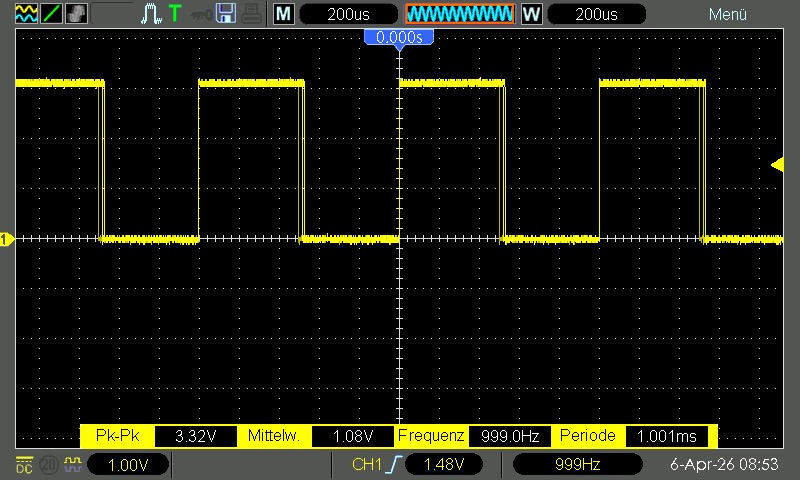
Eventually I figured out that what I saw on the Oscilloscope the base frequency was divided by the reload period and approximate 1kHz is enough for an LED.
Still, no matter what I did the duty cycle did not move linearly. In the upper quarter (75 %–100 %) the brightness
jumped in big steps. On the scope the pulse width changed in uneven increments. I had written an operator * for
Percentage that divided first and then multiplied — a classic fixed-point mistake. Because Percentage is a delta 0.1 fixed-point type and Period is an integer, the division lost precision near 100 %.
The fix was simple once I saw it (pair-programming with myself, or rather with Grok, helped enormously): multiply
first, then divide. I also expanded the calculation to Integer to avoid overflow as Period is only UInt16 and added
special cases for exactly 0 % and 100 %.
Here is the final, smooth version (now written as a concise function expression with Inline and Pure_Function):
   function "*"
      (Left  : in RP.PWM.Period;
       Right : in Percentage)
       return RP.PWM.Period is
     (if Right = 0.0 then 0
      elsif Right = 100.0 then Left
      else RP.PWM.Period (Integer (Left) * Integer (Right) / 100))
   with Inline, Pure_Function;
With the new operator the duty cycle moved perfectly linearly on the scope. I could watch the bright bar sweep smoothly from left to right and back again. When I pressed Auto-Set, Channel 2 (which I was not using) automatically hid itself — a nice little convenience of the MSO-5102B.
The final specification and body of Pico.Analog are shown below. The package also includes convenient Map overloads
and the safe To_PWM_LED helper we will need for multiple LEDs.
Specification of Pico.Analog #
pragma License (Modified_Gpl);
pragma Ada_2022;
pragma Extensions_Allowed (On);

with Pico.Utils;
with RP.GPIO;
with RP.PWM;
with HAL;

---
--   Simplified analogue GPIO using Pulse Width Modulation (PWM).
--
--   Pulse Width Modulation (PWM) allows us to generate analogue-like outputs
--   on digital GPIO pins by varying the duty cycle of a high-frequency square
--   wave. This package provides a simple, reusable interface for PWM-based
--   analogue output on the Raspberry Pi Pico. It is designed to be a universal
--   library component, saving us from repetitive code and helping the community.
--
package Pico.Analog is
   use type RP.PWM.Period;
   use type HAL.UInt8;

   type PWM_Point is private;

   ---
   --  Default values suitable for dimming an LED.
   --
   Default_Frequency : constant RP.Hertz       := 1_000_000;
   Default_Reload    : constant RP.PWM.Period  := 1_000;
   Default_Divider : constant RP.PWM.Divider := RP.PWM.Divider (RP.Clock.Frequency (RP.Clock.SYS) / Default_Frequency);

   ---
   --  Analogue value as fixed point percentage.
   --
   type Percentage is delta 0.1 digits 4 range 0.0 .. 100.0;

   ---
   --  Analogue value as 8-bit value (for compatibility with C code).
   --
   subtype Analog_Level is HAL.UInt8;

   ---
   --  Create a new PWM point from a GPIO point. This configures the PWM hardware for the given GPIO pin with the
   --  specified base frequency and reload period. Note that the final output frequency will be approximately
   --  Frequency divided by Reload, adjusted to the nearest divider of the Pico's base frequency.
   --
   --: @param Point     GPIO point to use for the PWM output
   --: @param Frequency Base frequency in Hertz
   --: @param Reload    Reload period (ticks per cycle)
   --: @return          New PWM point configured and ready for use
   function To_PWM
      (Point     : in out RP.GPIO.GPIO_Point;
       Frequency : in     RP.Hertz      := Default_Frequency;
       Reload    : in     RP.PWM.Period := Default_Reload)
       return PWM_Point;

   ---
   --  Set the PWM output level using a percentage duty cycle (0.0 to 100.0).
   --
   procedure Write_Analog (Point : in PWM_Point; Level : in Percentage) with
      Inline;

   ---
   --  Set the PWM output level using an 8-bit value (0 to 255).
   --
   procedure Write_Analog (Point : in PWM_Point; Level : in Analog_Level) with
      Inline;

   ---
   --  Get the underlying PWM point to use with the RP.PWM package if more advanced control is required.
   --
   function Get_Base (Point : in PWM_Point) return RP.PWM.PWM_Point with
      Inline, Pure_Function;

   ---
   --  Get the frequency set for this PWM point.
   --
   function Get_Frequency (Point : in PWM_Point) return RP.Hertz with
      Inline, Pure_Function;

   ---
   --  Get the reload counter set for this PWM point.
   --
   function Get_Reload (Point : in PWM_Point) return RP.PWM.Period with
      Inline, Pure_Function;

   ---
   --  Calculate the actual reload counter needed for a given analogue output expressed as a percentage.
   --
   --: @param Left   Base reload counter
   --: @param Right  Desired analogue output as a percentage (0.0 .. 100.0)
   --: @return       Scaled reload counter corresponding to the duty cycle
   function "*"
      (Left  : in RP.PWM.Period;
       Right : in Percentage)
       return RP.PWM.Period is
      (if Right = 0.0 then 0
       elsif Right = 100.0 then Left
       else RP.PWM.Period (Integer (Left) * Integer (Right) / 100)) with
      Inline, Pure_Function;

   ---
   --  Calculate the actual reload counter needed for a given analogue output expressed as an 8-bit level.
   --
   --: @param Left   Base reload counter
   --: @param Right  Desired analogue output as an 8-bit value (0 .. 255)
   --: @return       Scaled reload counter corresponding to the duty cycle
   function "*"
      (Left  : in RP.PWM.Period;
       Right : in Analog_Level)
       return RP.PWM.Period is
      (if Right = 0 then 0
       elsif Right = 255 then Left
       else RP.PWM.Period (Integer (Left) * Integer (Right) / 255)) with
      Inline, Pure_Function;

   ---
   --  Map an input value from a custom range directly to a Percentage (0.0 .. 100.0).
   --
   --  This is a convenient shortcut that scales any integer input (for example from an ADC, a sensor, or a counter)
   --  into the full percentage range used by ``Write_Analog``. It gives you 1000 distinct levels (0.0, 0.1, 0.2 …
   --  99.9, 100.0) which provides finer control than the 256 levels of ``Analog_Level``.
   --
   --  Internally it first calls ``Pico.Utils.Map`` to get a value in the range 0..999, then converts that to
   --  ``Percentage``. The division by 10 is done by the fixed-point type itself — you do **not** need to split
   --  the integer manually.
   --
   --  Example:
   --    --  Convert a potentiometer reading (0..1023) to a PWM percentage
   --    Brightness := Map (Pot_Value, 0, 1023);
   --    Write_Analog (LED_Point, Brightness);
   --
   --: @param In_Value  Value to be mapped
   --: @param In_Min    Lower bound of the input range
   --: @param In_Max    Upper bound of the input range
   --: @return          Value scaled to the range 0.0 .. 100.0 as Percentage
   function Map_Percentage
      (In_Value : in Integer;
       In_Min   : in Integer;
       In_Max   : in Integer)
       return Percentage is (Percentage (Pico.Utils.Map (In_Value, In_Min, In_Max, 0, 999)) / 10) with
      Inline, Pure_Function;

   ---
   --  Map an input value from a custom range directly to an Analog_Level (0..255).
   --
   --  This is a convenient shortcut for the common case where you want to convert a sensor reading or any integer
   --  value into an 8-bit analogue output suitable for PWM. It internally calls ``Pico.Utils.Map`` and scales the
   --  result to the full range of ``Analog_Level``.
   --
   --  Example:
   --    --  Convert a potentiometer reading (0..1023) to PWM level
   --    LED_Level := Map (Pot_Value, 0, 1023);
   --
   --: @param In_Value  Value to be mapped
   --: @param In_Min    Lower bound of the input range
   --: @param In_Max    Upper bound of the input range
   --: @return          Value scaled to the range 0..255 as Analog_Level
   function Map_Analog_Level
      (In_Value : in Integer;
       In_Min   : in Integer;
       In_Max   : in Integer)
       return Analog_Level is
      (Analog_Level
          (Pico.Utils.Map
              (In_Value, In_Min, In_Max, Integer (Analog_Level'First), Integer (Analog_Level'Last - 1)))) with
      Inline, Pure_Function;

private

   type PWM_Point is record
      Base      : RP.PWM.PWM_Point;
      Frequency : RP.Hertz;
      Reload    : RP.PWM.Period;
   end record;

   function Get_Base (Point : in PWM_Point) return RP.PWM.PWM_Point is (Point.Base);
   function Get_Frequency (Point : in PWM_Point) return RP.Hertz is (Point.Frequency);
   function Get_Reload (Point : in PWM_Point) return RP.PWM.Period is (Point.Reload);

end Pico.Analog;
Body of Pico.Analog #
pragma License (Modified_Gpl);
pragma Ada_2022;
pragma Extensions_Allowed (On);

package body Pico.Analog is

   function To_PWM
      (Point     : in out RP.GPIO.GPIO_Point;
       Frequency : in     RP.Hertz      := Default_Frequency;
       Reload    : in     RP.PWM.Period := Default_Reload)
       return PWM_Point
   is
      Retval : constant PWM_Point :=
         (RP.PWM.To_PWM (Point),
          Frequency,
          Reload);
   begin
      RP.PWM.Set_Frequency (Retval.Base.Slice, Frequency);
      RP.PWM.Set_Interval (Retval.Base.Slice, Reload);
      RP.PWM.Enable (Retval.Base.Slice);
      Point.Configure (RP.GPIO.Output, RP.GPIO.Floating, RP.GPIO.PWM);

      return Retval;
   end To_PWM;

   procedure Write_Analog (Point : in PWM_Point; Level : in Percentage) is
      Reload     : constant RP.PWM.Period := Get_Reload (Point);
      Duty_Cycle : constant RP.PWM.Period := Reload * Level;
   begin
      RP.PWM.Set_Duty_Cycle (Point.Base.Slice, Point.Base.Channel, Duty_Cycle);
      return;
   end Write_Analog;

   procedure Write_Analog (Point : in PWM_Point; Level : in Analog_Level) is
      Reload     : constant RP.PWM.Period := Get_Reload (Point);
      Duty_Cycle : constant RP.PWM.Period := Reload * Level;
   begin
      RP.PWM.Set_Duty_Cycle (Point.Base.Slice, Point.Base.Channel, Duty_Cycle);
      return;
   end Write_Analog;

begin
   RP.PWM.Initialize;
end Pico.Analog;
The actual sketch. #
The actual program us now just a simple as the C version. As will any future sketch using PWM Output.
pragma License (Modified_Gpl);
pragma Ada_2022;
pragma Extensions_Allowed (On);

with Pico;
with Ada.Real_Time;
with Pico.Analog;

---
--  Breathing LED sample from Chapter 4.1 from the Freenove C-Tutorial
--
procedure Sketch_04_1_Breathing_Light with
   No_Return
is
   use type Ada.Real_Time.Time_Span;
   use type Ada.Real_Time.Time;

   LED         : constant Pico.Analog.PWM_Point   := Pico.Analog.To_PWM (Pico.GP15);
   Hold_Period : constant Ada.Real_Time.Time_Span := Ada.Real_Time.To_Time_Span (0.05);
   Next        : Ada.Real_Time.Time               := Ada.Real_Time.Clock;
begin
   loop
      for I in 0 .. 100 loop
         Pico.Analog.Write_Analog (LED, Pico.Analog.Percentage (I));
         Next := @ + Hold_Period;
         delay until Next;
      end loop;

      for I in reverse 0 .. 100 loop
         Pico.Analog.Write_Analog (LED, Pico.Analog.Percentage (I));
         Next := @ + Hold_Period;
         delay until Next;
      end loop;
   end loop;
end Sketch_04_1_Breathing_Light;
Now that it’s finished it looks all nice and tidy but the was there was stony.
sketch_04_2_flowing_light_2.adb – The flowing light bar #
Now that we had a clean, reusable Pico.Analog package, the next logical step was to tackle the flowing light bar
(sometimes called a “comet” or “cylon” effect) using ten PWM channels.
The C original uses a map function to calculate brightness. Even though we could have pre-calculated the values, I
decided to implement a proper Map function in Pico.Utils because I know we will need linear interpolation again
later.
pragma License (Modified_Gpl);
pragma Ada_2022;
pragma Extensions_Allowed (On);

---
--   General utility functions for the Raspberry Pi Pico.
--
--   This package contains small, reusable helper functions that I find myself
--   using again and again when working with the Pico. It is designed as a
--   universal support library and grows naturally alongside the Pi Ada Tutorial.
--
--   Current content:
--     * Map – linear interpolation (the famous Arduino map() function)
--
package Pico.Utils is

   ---
   --  Map a value from one range into another range using linear interpolation.
   --
   --  This is the well-known Arduino ``map()`` function, re-implemented cleanly in Ada. It performs a linear
   --  interpolation that scales the input value ``In_Value`` from the source range ``[In_Min .. In_Max]`` to the target
   --  range ``[Out_Min .. Out_Max]``.
   --
   --  The function is particularly useful when working with analogue sensors, PWM outputs, servo positions, or any
   --  situation where you need to convert a reading from one scale (e.g. raw ADC value) into a different scale (e.g.
   --  percentage, PWM duty cycle, servo angle in degrees).
   --
   --: Example:
   --:   --  Convert an ADC reading (0..4095) to a PWM percentage (0..100)
   --:    Duty_Cycle := Map (ADC_Value, 0, 4095, 0, 100);
   --
   --: @param In_Value Value to be mapped
   --: @param In_Min   Lower bound of the input range
   --: @param In_Max   Upper bound of the input range
   --: @param Out_Min  Lower bound of the output range
   --: @param Out_Max  Upper bound of the output range
   --: @return         The mapped value in the new range
   function Map
      (In_Value : in Integer;
       In_Min   : in Integer;
       In_Max   : in Integer;
       Out_Min  : in Integer;
       Out_Max  : in Integer)
       return Integer is ((In_Value - In_Min) * (Out_Max - Out_Min) / (In_Max - In_Min) + Out_Min) with
      Inline, Pure_Function;

end Pico.Utils;
The program itself looked straightforward at first — until I tested it on the Pico 2W.
pragma License (Modified_Gpl);
pragma Ada_2022;
pragma Extensions_Allowed (On);

with Pico.Analog;
with Ada.Real_Time;
---
--  Flowing LED sample from Chapter 3.1 from the Freenove C-Tutorial.
--
procedure Sketch_04_2_Flowing_Light_2 with
   No_Return
is
   use type Ada.Real_Time.Time_Span;
   use type Ada.Real_Time.Time;

   ---
   --  The LED bar has 10 LEDs
   --
   LED_Count : constant := 10;

   ---
   --   GPIO Pins the LEDs are connected to
   --
   LEDs : constant array (1 .. LED_Count)
      of Pico.Analog.PWM_Point :=
      [Pico.Analog.To_PWM (Pico.GP16),
      Pico.Analog.To_PWM (Pico.GP17),
      Pico.Analog.To_PWM (Pico.GP18),
      Pico.Analog.To_PWM (Pico.GP19),
      Pico.Analog.To_PWM (Pico.GP20),
      Pico.Analog.To_PWM (Pico.GP21),
      Pico.Analog.To_PWM (Pico.GP22),
      Pico.Analog.To_PWM (Pico.GP26),
      Pico.Analog.To_PWM (Pico.GP27),
      Pico.Analog.To_PWM (Pico.GP28)];

   ---
   --  Predefined duty-cycle table for creating a smooth "breathing" or fading effect.
   --
   --  This array contains 30 PWM values that start at 0, rise smoothly to full brightness (using powers of two), and
   --  then fall back to 0 again. It is ideal for LED breathing animations, status indicators, or any effect where you
   --  want a gentle fade-in / fade-out without doing the maths at runtime.
   --
   --  The values were generated with the ``Map`` function (see below) and are already scaled to the full 12-bit PWM
   --  range (0 .. 4095) used by the Pico.
   --
   --:  Typical usage:
   --:    for I in Duty_Cycle_Table'Range loop
   --:       Write_Analog (LED_Point, Duty_Cycle_Table (I));
   --:       delay 0.05;
   --:    end loop;
   --!pp off
   Duty_Cycle_Table : constant array (1 .. 30)
      of Integer := [
      0,     0,     0,     0,   0,   0,   0,  0,  0,  0,
      4_095, 2_047, 1_023, 512, 256, 128, 64, 32, 16, 8,
      0,     0,     0,     0,   0,   0,   0,  0,  0,  0];
   --!pp on

   Hold_Period : constant Ada.Real_Time.Time_Span := Ada.Real_Time.To_Time_Span (0.05);
   Next        : Ada.Real_Time.Time               := Ada.Real_Time.Clock;

begin
   loop
      --  Fowling light right to left
      for I in 0 .. 2 * LED_Count - 1 loop
         for J in LEDs'Range loop
            Pico.Analog.Write_Analog (LEDs (J), Pico.Analog.Map_Percentage (Duty_Cycle_Table (J + I), 0, 4_096));
         end loop;
         Next := @ + Hold_Period;
         delay until Next;
      end loop;

      --  Fowling light left to right
      for I in 0 .. 2 * LED_Count - 1 loop
         for J in reverse LEDs'Range loop
            Pico.Analog.Write_Analog
               (LEDs (J), Pico.Analog.Map_Percentage (Duty_Cycle_Table (LED_Count - J + I), 0, 4_096));
         end loop;
         Next := @ + Hold_Period;
         delay until Next;
      end loop;
   end loop;
end Sketch_04_2_Flowing_Light_2;
The Pico 2 debugging adventure #
Several LEDs stayed dark. At first I feared I had damaged the hardware. A quick continuity test on the LEDs and running the Chapter 3 cylon light on the Pico 2W proved the hardware was fine.
So the problem had to be in the software.
After some head-scratching and advice from Grok, I suspected PWM slice configuration issues. I created a minimal test with just two LEDs on GPIO14 and GPIO15 and added UART debug output.
procedure Breathing_2_Lights with
   No_Return
is
   use type Ada.Real_Time.Time_Span;
   use type Ada.Real_Time.Time;
   use type Pico.Analog.Analog_Level;

   ---
   --  Use GP14 and GP15 for the two external LEDs
   --
   LED_1_GPIO  : constant RP.GPIO.GPIO_Point      := Pico.GP14;
   LED_2_GPIO  : constant RP.GPIO.GPIO_Point      := Pico.GP15;
   LED_1_PWM   : constant RP.PWM.PWM_Point        := RP.PWM.To_PWM (LED_1_GPIO);
   LED_2_PWM   : constant RP.PWM.PWM_Point        := RP.PWM.To_PWM (LED_2_GPIO);
   Hold_Period : constant Ada.Real_Time.Time_Span := Ada.Real_Time.To_Time_Span (0.05);
   Next        : Ada.Real_Time.Time               := Ada.Real_Time.Clock;
begin
   Pico.UART_IO.Initialise;
   Pico.UART_IO.Put_Line ("+ Breathing_2_Lights");

   Pico.UART_IO.Put_Line ("> LED_1 Pin     => " & LED_1_GPIO.Pin'Image);
   Pico.UART_IO.Put_Line ("> LED_1 Slice   => " & LED_1_PWM.Slice'Image);
   Pico.UART_IO.Put_Line ("> LED_1 Channel => " & LED_1_PWM.Channel'Image);
   Pico.UART_IO.Put_Line ("> LED_2 Pin     => " & LED_2_GPIO.Pin'Image);
   Pico.UART_IO.Put_Line ("> LED_2 Slice   => " & LED_2_PWM.Slice'Image);
   Pico.UART_IO.Put_Line ("> LED_2 Channel => " & LED_2_PWM.Channel'Image);

   RP.PWM.Set_Divider (LED_1_PWM.Slice, Pico.Analog.Default_Divider);
   RP.PWM.Set_Interval (LED_1_PWM.Slice, Pico.Analog.Default_Reload);
   RP.PWM.Set_Interval (LED_2_PWM.Slice, Pico.Analog.Default_Reload);
   RP.PWM.Enable (LED_1_PWM.Slice);
   Pico.GP14.Configure (RP.GPIO.Output, RP.GPIO.Floating, RP.GPIO.PWM);
   Pico.GP15.Configure (RP.GPIO.Output, RP.GPIO.Floating, RP.GPIO.PWM);

   Pico.UART_IO.Put_Line ("> Entering main loop");
   loop
      for I in Pico.Analog.Analog_Level'Range loop
         RP.PWM.Set_Duty_Cycle (LED_1_PWM.Slice, LED_1_PWM.Channel, Pico.Analog."*" (Pico.Analog.Default_Reload, I));
         RP.PWM.Set_Duty_Cycle (LED_2_PWM.Slice, LED_2_PWM.Channel, Pico.Analog."*" (Pico.Analog.Default_Reload, I));

         Next := @ + Hold_Period;
         delay until Next;
      end loop;

      for I in reverse Pico.Analog.Analog_Level'Range loop
         RP.PWM.Set_Duty_Cycle (LED_1_PWM.Slice, LED_1_PWM.Channel, Pico.Analog."*" (Pico.Analog.Default_Reload, I));
         RP.PWM.Set_Duty_Cycle (LED_2_PWM.Slice, LED_2_PWM.Channel, Pico.Analog."*" (Pico.Analog.Default_Reload, I));

         Next := @ + Hold_Period;
         delay until Next;
      end loop;
   end loop;
end Breathing_2_Lights;
The result was surprising:
+ Breathing_2_Lights
> LED_1 Pin     =>  14
> LED_1 Slice   =>  6
> LED_1 Channel => A
> LED_2 Pin     =>  15
> LED_2 Slice   =>  7
> LED_2 Channel => B
> Entering main loop
According to the RP2350 datasheet, GPIO14 should be on slice 7, not 6. This was clearly a bug in the experimental RP2350 HAL.
Looking closer at RP.PWM.To_PWM, I noticed a classic copy-paste error: the function performed Shift_Right (Pin, 1)
but then ignored the shifted value and used the original Pin for the mask. A one-line fix (Slice := Slice and 2#111#;) solved the problem.
I have submitted a pull request upstream. With the corrected HAL the flowing light bar now works beautifully on both the Pico 1 and Pico 2 / Pico 2W.
The final flowing light program #
The actual sketch is now as simple and elegant as the C version:
pragma License (Modified_Gpl);
pragma Ada_2022;
pragma Extensions_Allowed (On);

with Pico.Analog;
with Ada.Real_Time;

---
--  Flowing LED sample from Chapter 3.1 from the Freenove C-Tutorial.
--
procedure Sketch_04_2_Flowing_Light_2 with
   No_Return
is
   use type Ada.Real_Time.Time_Span;
   use type Ada.Real_Time.Time;

   ---
   --  The LED bar has 10 LEDs
   --
   LED_Count : constant := 10;

   ---
   --   GPIO Pins the LEDs are connected to
   --
   LEDs : constant array (1 .. LED_Count)
      of Pico.Analog.PWM_Point :=
      [Pico.Analog.To_PWM (Pico.GP16),
      Pico.Analog.To_PWM (Pico.GP17),
      Pico.Analog.To_PWM (Pico.GP18),
      Pico.Analog.To_PWM (Pico.GP19),
      Pico.Analog.To_PWM (Pico.GP20),
      Pico.Analog.To_PWM (Pico.GP21),
      Pico.Analog.To_PWM (Pico.GP22),
      Pico.Analog.To_PWM (Pico.GP26),
      Pico.Analog.To_PWM (Pico.GP27),
      Pico.Analog.To_PWM (Pico.GP28)];

   ---
   --  Predefined duty-cycle table for creating a smooth "breathing" or fading effect.
   --
   --  This array contains 30 PWM values that start at 0, rise smoothly to full brightness (using powers of two), and
   --  then fall back to 0 again. It is ideal for LED breathing animations, status indicators, or any effect where you
   --  want a gentle fade-in / fade-out without doing the maths at runtime.
   --
   --  The values were generated with the ``Map`` function (see below) and are already scaled to the full 12-bit PWM
   --  range (0 .. 4095) used by the Pico.
   --
   --:  Typical usage:
   --:    for I in Duty_Cycle_Table'Range loop
   --:       Write_Analog (LED_Point, Duty_Cycle_Table (I));
   --:       delay 0.05;
   --:    end loop;
   --!pp off
   Duty_Cycle_Table : constant array (1 .. 3 * LED_Count)
      of Integer := [
      0,     0,     0,     0,   0,   0,   0,  0,  0,  0,
      4_095, 2_047, 1_023, 512, 256, 128, 64, 32, 16, 8,
      0,     0,     0,     0,   0,   0,   0,  0,  0,  0];
   --!pp on

   Hold_Period : constant Ada.Real_Time.Time_Span := Ada.Real_Time.To_Time_Span (0.05);
   Next        : Ada.Real_Time.Time               := Ada.Real_Time.Clock;

begin
   loop
      --  Fowling light right to left
      for I in 0 .. 2 * LED_Count - 1 loop
         for J in LEDs'Range loop
            Pico.Analog.Write_Analog (LEDs (J), Pico.Analog.Map_Percentage (Duty_Cycle_Table (J + I), 0, 4_096));
         end loop;
         Next := @ + Hold_Period;
         delay until Next;
      end loop;

      --  Fowling light left to right
      for I in 0 .. 2 * LED_Count - 1 loop
         for J in reverse LEDs'Range loop
            Pico.Analog.Write_Analog
               (LEDs (J), Pico.Analog.Map_Percentage (Duty_Cycle_Table (LED_Count - J + I), 0, 4_096));
         end loop;
         Next := @ + Hold_Period;
         delay until Next;
      end loop;
   end loop;
end Sketch_04_2_Flowing_Light_2;
What I learned in Chapter 4 #
- Always trust the oscilloscope first — it shows what the code is really doing.
- Fixed-point arithmetic needs “multiply first, then divide” to keep precision, especially near the upper end of the range.
- When working with the experimental Pico 2 support, never assume the HAL behaves exactly like the RP2040 version. Debugging with UART output and the scope is invaluable.
- A modern USB-powered mixed-signal scope with screenshot capability is something I could only dream of as a teenager in the early 1980s. Capturing perfect images of my PWM signals and sharing them on the tutorial site still feels like a small miracle
Happy hacking!